SVG to PNG sharp export workflow
SVG
->
PNG
Sharp raster export
Practical Guide
Export razor-sharp PNGs from SVG every time with pixel-safe dimensions and scaling rules.
SVG to PNG sharp export workflow
Sharp raster export
Quick summary
Export razor-sharp PNGs from SVG every time with pixel-safe dimensions and scaling rules.
Changelog: content updated 2026-02-24, references verified 2026-02-24.
Field Note
Sharp PNG exports come from geometric discipline: integer sizing, correct viewBox setup, and stroke alignment on pixel boundaries.
Export at exact target sizes and verify 1px strokes land on whole-pixel coordinates to avoid blur.
Render at 2x or 3x scale for high-density displays, then serve downscaled outputs to preserve crispness.
Lock one canonical SVG source and automate deterministic PNG generation for each required size.
Pre-publish QA questions
Format Ops Deep Dive
Reference-backed format defaults, quality baselines, and conversion edge-case fixes.
| Use case | Setting | Baseline | Target |
|---|---|---|---|
| Hero or landing photo | AVIF/WebP + JPG fallback | 1600-2000 px long edge | 120-260 KB |
| Content/editorial image | WebP or optimized JPG | 900-1400 px long edge | 70-180 KB |
| Transparent brand/UI graphic | PNG or SVG | Exact render size x2 | Under 180 KB |
Before
Mixed-format uploads, inconsistent quality presets, and large payload variance across templates.
After
Role-based format rules with explicit fallbacks and constrained export dimensions.
Typical outcome
Fewer upload failures, faster pages, and more predictable visual QA outcomes.
| Issue | Cause | Fix |
|---|---|---|
| Assets look soft after conversion | Wrong export dimensions or over-compression | Match real display size and raise quality gradually with side-by-side checks. |
| Platform rejects uploads intermittently | Unsupported format in some channels | Define per-channel fallback format and enforce it in workflow. |
| Files are unexpectedly huge | Using transparency formats for photo-heavy assets | Reclassify asset type and switch to photo-friendly format. |
| Pattern | Result | Rule |
|---|---|---|
| Integer dimensions + aligned strokes | Sharp output | Keep geometry on whole pixels |
| Fractional dimensions | Soft edges | Avoid half-pixel canvas sizes |
| Embedded low-res bitmap | Permanent blur | Replace with vector or higher-res source |
Who this is for
What success looks like
Tested on
Scope and limits
Key takeaways
Common mistakes to avoid
30-minute action plan
Recommended tool stack
Related guides in this track
Convert iPhone HEIC photos into clean JPG files that upload everywhere without quality surprises.
6 min read
Choose AVIF or WebP confidently using real tradeoffs for quality, speed, and browser coverage.
8 min read
Pick the right default for photo-heavy pages with practical quality and payload checkpoints.
7 min read
Use one actionable framework to choose JPG, PNG, WebP, AVIF, SVG, or GIF by context.
9 min read
Execution depth
Fast Pass
15-20 min
Fix the highest-risk issue first and ship a validated minimum improvement.
Standard Rollout
45-60 min
Apply the full guide workflow with QA checks before publishing broadly.
Team Standardization
90+ min
Convert the workflow into reusable presets, checklists, and team operating rules.
| Troubleshooting Signal | Likely Cause | Recommended Fix |
|---|---|---|
| Output looks soft or fuzzy | Aggressive compression or wrong export dimensions | Re-export at correct display size and raise quality incrementally. |
| Uploads fail on target platform | Unsupported format or oversized file | Convert to a safer fallback format and compress before retrying. |
| Unexpectedly large file size | Inefficient source format or metadata bloat | Run conversion + compression and strip unnecessary metadata. |
Post-publish KPI checks
Detailed implementation blueprint
Map where each image type appears and where format mismatches are causing bloat or breakage.
Done when: You have a categorized inventory and the top three format issues prioritized.
Run representative conversions with side-by-side quality checks before broad rollout.
Done when: You have approved format rules per asset type with validated quality and size results.
Apply rules in templates and upload workflows with safe fallback behavior.
Done when: New uploads follow the standard and critical templates use optimized formats.
Keep format decisions current as browsers, workflows, and channels evolve.
Done when: The format policy is stable, documented, and verified by ongoing metrics.
Quality gate checklist
Advanced wins
Execution next step
Run a primary tool action, review one companion guide, then apply the rollout checklist.
Follow this sequence to convert SVG assets to crisp, pixel-perfect PNG files without blurry edges.
Ensure the SVG has a correct viewBox, clean paths, and no embedded raster content that limits quality.
Match output width and height to the exact display size — avoid scaling an exported PNG up later.
Align geometric edges to pixel boundaries in your vector editor to prevent sub-pixel blur on straight lines.
View the exported PNG at 100% zoom on the intended display density to confirm edge sharpness.
Dimension-matched, pixel-snapped exports eliminate the blur that ruins SVG-to-PNG conversions.
A quick visual comparison helps you catch export quality issues before handoff.
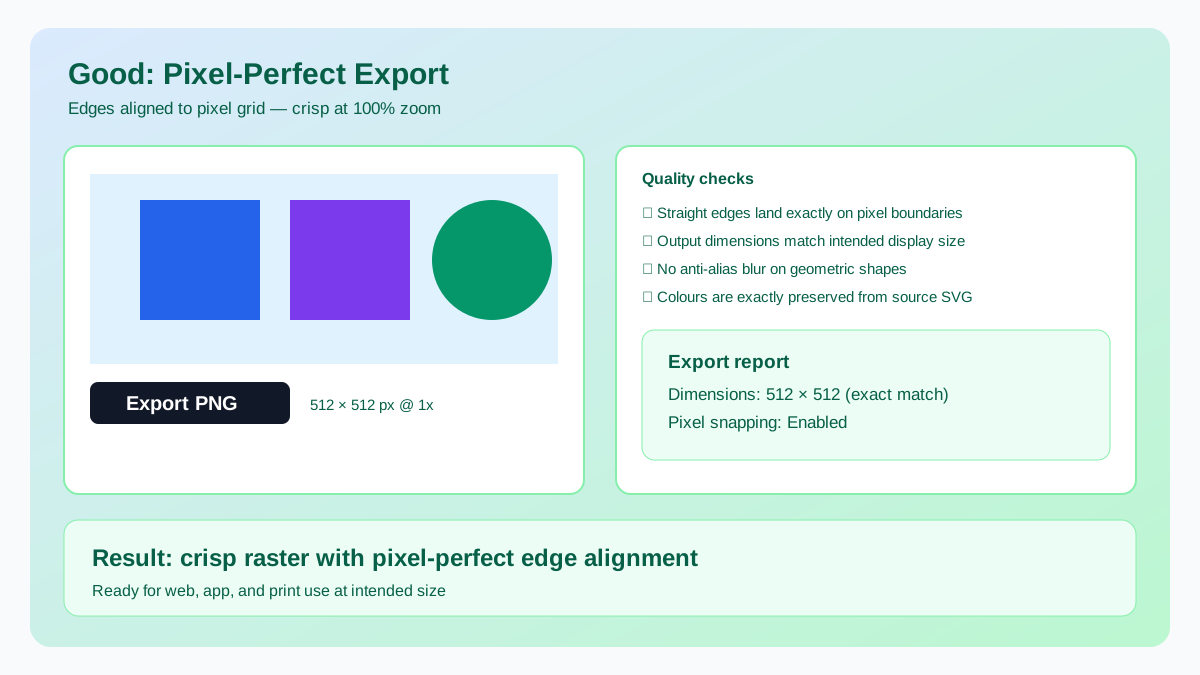
Edges aligned to pixel grid, exported at exact display dimensions.
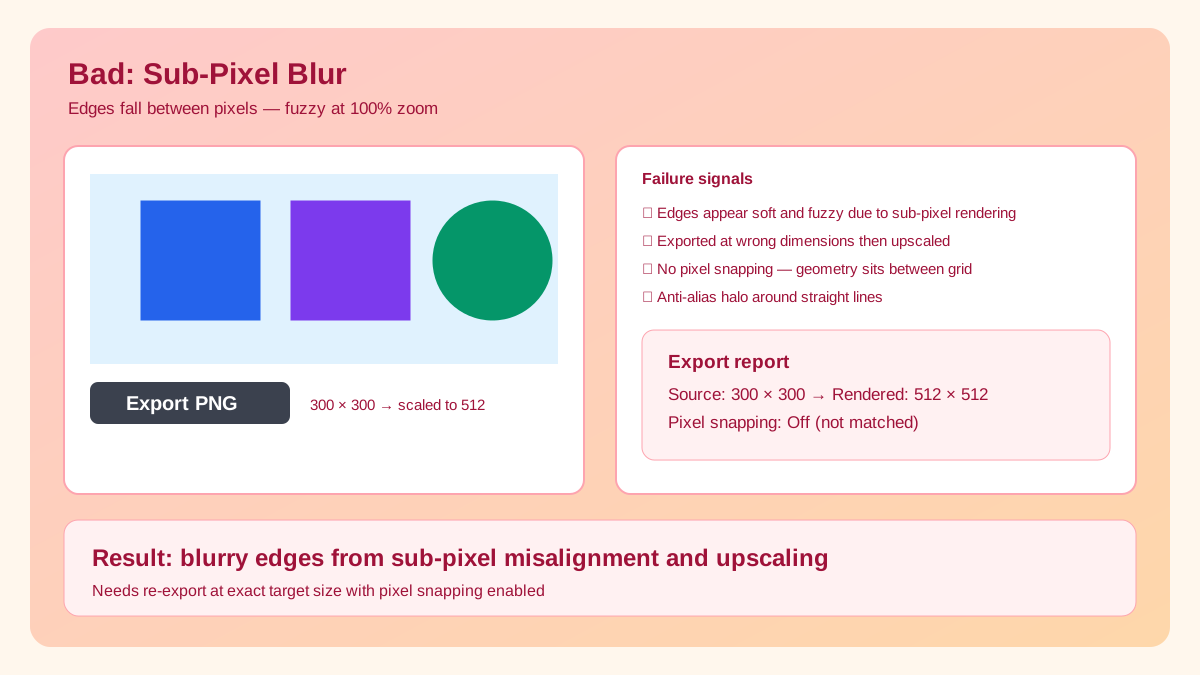
Geometric edges sit between pixels, creating anti-aliased blur on straight lines.
Non-integer width/height introduces anti-aliasing softness.
Half-pixel stroke placement can soften lines on export.
Small raster export that is scaled up later will blur.
Raster assets inside SVG cannot become sharper after conversion.
| Use Case | Suggested Output | Tip |
|---|---|---|
| Website icon/button | 2x display size PNG | Keep stroke widths consistent and integer-based. |
| Marketing card graphic | 1200px+ wide PNG | Use larger export for text-heavy visuals. |
| Logo fallback raster | Transparent PNG at target contexts | Retain alpha and avoid unnecessary re-compression. |
Related workflow
Explore related tools to keep your workflow fast and consistent.
