Practical Guide

Compress PNG Without Losing Quality

Shrink PNG files aggressively while preserving transparency, sharp edges, and brand quality.

PNG compression optimization loop

  • OK Classify PNG type
  • OK Run lossless pass
  • OK Compare visual diff

Quick summary

  • Lossless optimization checkpoints for safe compression
  • Visual QA routine to avoid accidental degradation
Performance & SEO Intermediate 7 min read Updated 2026-02-24 Last verified 2026-02-24

Quick Summary

Shrink PNG files aggressively while preserving transparency, sharp edges, and brand quality.

Changelog: content updated 2026-02-24, references verified 2026-02-24.

Field Note

Lossless wins come from removing waste, not detail: optimize palettes, metadata, and bit depth before changing visual content.

UI and screenshot assets

Reduce color depth where possible and strip non-essential metadata to cut size safely.

Transparent branding graphics

Preserve alpha integrity while removing unnecessary channels and bloated ancillary chunks.

Large legacy PNG libraries

Batch-run optimization and validate with quick visual diff checks before replacing originals.

Pre-publish QA questions

  • Did compression keep transparent edges clean on light and dark backgrounds?
  • Are optimized files visually identical at 100% viewing scale?
  • Have oversized PNG variants been replaced in templates and CMS entries?

Performance Deep Dive

Image budget defaults, CWV-ready workflows, and regression prevention checks.

Sources: 2 Defaults: 3 Edge Cases: 3 Modules: 3 Advanced Notes: 3
Standards and References As of 2026-02-24
Default settings snapshot 3 rows
Use case Setting Baseline Target
LCP hero image Preloaded, right-sized, compressed Explicit dimensions in markup Lower LCP and stable render
Feed and gallery assets Responsive variants + lazy loading offscreen Max payload thresholds by template Lower transfer and smoother scroll
Search-discovery image set Canonical URL and metadata hygiene Sitemap + alt text quality checks Higher indexable image coverage
Before / After proof pattern Expand

Before

Oversized hero media, missing dimensions, and inconsistent delivery patterns.

After

Template-level image budgets and standardized loading/fallback behavior.

Typical outcome

More stable CWV metrics and measurable reduction in image-related regressions.

Edge-case clinic 3 cases
Issue Cause Fix
LCP does not improve after compression Hero still oversized or incorrectly prioritized Rework hero dimensions and loading priority path first.
CLS worsens after redesign Missing reserved image space Enforce width/height or aspect-ratio placeholders in components.
Indexing gains are weak Discovery workflow missing sitemap/alt coverage Connect optimization with crawl and metadata processes.
Advanced PNG Optimization Notes 3 notes
  • Apply file-type-aware lossless presets (logos, UI captures, illustrations) instead of one generic setting.
  • Use visual diff checks when optimizing critical brand or interface assets.
  • Define thresholds where switching to modern formats is better than further PNG tuning.
Guide-specific execution modules 3 modules

File Archetype Presets

Archetype Preferred Treatment Goal
Logo with transparency Lossless PNG optimization Preserve edge fidelity
UI screenshot Lossless + metadata trim Keep text crisp
Illustration/flat graphic Palette-aware optimization Reduce size safely

Switch-to-WebP/AVIF Threshold Rules

  • If PNG remains disproportionately large and no alpha is needed, test WebP.
  • For photo-like assets, evaluate AVIF/WebP before further PNG tuning.
  • Retain PNG when transparency precision is essential.

QA Diffs Checklist

  • Compare before/after at 100% zoom on critical edges.
  • Verify gradients for banding after optimization.
  • Spot-check dark/light backgrounds for transparent assets.

Who this is for

  • Developers responsible for Core Web Vitals
  • SEO teams optimizing image-driven pages
  • Content ops teams scaling media publishing

What success looks like

  • Reduce image-related bottlenecks affecting rankings and UX.
  • Create consistent media optimization standards for teams.
  • Improve speed metrics without sacrificing visual quality.

Tested on

  • Compress PNG Without Losing Quality: Lab checks for image-heavy templates with Core Web Vitals tooling.
  • Compress PNG Without Losing Quality: Responsive rendering validation across common breakpoints.
  • Compress PNG Without Losing Quality: Post-change metric checks on representative production-like pages.

Scope and limits

  • Compress PNG Without Losing Quality: Image fixes alone cannot solve all CWV bottlenecks.
  • Compress PNG Without Losing Quality: Field data improvements may take time due to rolling windows.
  • Compress PNG Without Losing Quality: Template/framework constraints may cap achievable delivery patterns.

Key takeaways

  • Lossless optimization checkpoints for safe compression
  • Visual QA routine to avoid accidental degradation

Common mistakes to avoid

  • Optimizing individual assets but not template-level delivery.
  • Skipping metric rechecks after image workflow changes.
  • Ignoring lazy-load, sizing, and preload interactions.

30-minute action plan

  1. 1 0-10 min: Prioritize templates with highest traffic and LCP impact.
  2. 2 10-20 min: Apply compression/sizing changes to representative assets.
  3. 3 20-30 min: Validate CWV deltas and lock rollout checklist.

Related guides in this track

Image Sitemap Guide

Help search engines discover, crawl, and index important image assets more reliably.

9 min read

Execution depth

Fast Pass

15-20 min

Fix the highest-risk issue first and ship a validated minimum improvement.

Standard Rollout

45-60 min

Apply the full guide workflow with QA checks before publishing broadly.

Team Standardization

90+ min

Convert the workflow into reusable presets, checklists, and team operating rules.

Troubleshooting Signal Likely Cause Recommended Fix
LCP remains high after compression Hero image dimensions/loading strategy still suboptimal Right-size hero assets and prioritize their delivery path.
CLS increases after image changes Width/height or aspect ratio not reserved Declare intrinsic dimensions and keep layout slots stable.
No SEO uplift after optimization Discovery/indexing flow not updated Align image sitemap, alt text, and crawlable delivery URLs.

Post-publish KPI checks

  • LCP improvement on image-heavy templates
  • CLS stability after image updates
  • Indexed image coverage growth

Detailed implementation blueprint

1

Metric Baseline

Quantify where images are currently hurting speed and search visibility.

  • Capture LCP/CLS baselines for homepage and top landing templates.
  • Identify largest image contributors by bytes and render priority.
  • Flag crawl/indexing gaps for key image assets.

Done when: You have a prioritized target list with measurable baseline metrics.

2

High-impact Fixes

Implement the smallest set of image changes that move key metrics quickly.

  • Right-size and compress hero images that dominate LCP.
  • Set intrinsic dimensions/aspect ratios to eliminate layout shifts.
  • Apply modern format delivery with fallback where necessary.

Done when: Critical templates show clear metric improvement in validation checks.

3

Template Standardization

Bake optimizations into reusable components so gains persist.

  • Define shared media component defaults for format, sizing, and loading.
  • Add publish guardrails for max dimensions and payload thresholds.
  • Align sitemap/alt text/image discovery workflows with SEO goals.

Done when: New content inherits optimized image behavior by default.

4

Continuous Optimization

Catch regressions early and keep improvements compounding.

  • Track weekly performance snapshots for image-heavy pages.
  • Alert on payload spikes or sudden LCP/CLS regressions.
  • Schedule monthly cleanup of oversized legacy assets.

Done when: Image performance remains within targets release after release.

Quality gate checklist

  • Top pages reserve image dimensions and avoid layout shift regressions.
  • Hero images meet size targets and are delivered with proper priority.
  • Format/compression defaults are enforced in content workflows.
  • Post-deploy metrics are reviewed with clear rollback thresholds.

Advanced wins

  • Set page-type-specific image budgets tied directly to LCP targets.
  • Treat image optimization as template architecture, not post-export cleanup.
  • Align content publishing SLAs with performance guardrails to prevent regressions.

Execution next step

Run a primary tool action, review one companion guide, then apply the rollout checklist.

Visual Blueprint

Conversion and Delivery Flow

Use this visual sequence to choose the right output format, preserve quality, and publish safely.

1 Step 1

Classify Asset

Identify whether the source is photo, graphic, icon, or mixed content.

2 Step 2

Choose Output Format

Pick JPG, PNG, WebP, or AVIF based on compatibility and payload goals.

3 Step 3

Tune Export Settings

Set quality, dimensions, and metadata rules before batch conversion.

4 Step 4

Validate in Destination

Preview output in the real channel and confirm visual stability.

Workflow Maturity Snapshot

This pattern helps teams avoid random one-off exports that cause regressions later.

Before: Ad-Hoc Exports

Risk: Inconsistent delivery
  • Different formats exported by different team members.
  • Inconsistent dimensions and quality settings by channel.
  • Quality issues discovered only after publishing.

After: Standardized Pipeline

Outcome: Predictable quality
  • One decision flow per asset type and destination.
  • Preset-driven output sizes and codec defaults.
  • Repeatable QA before publish and handoff.

Good vs Bad Compression Result

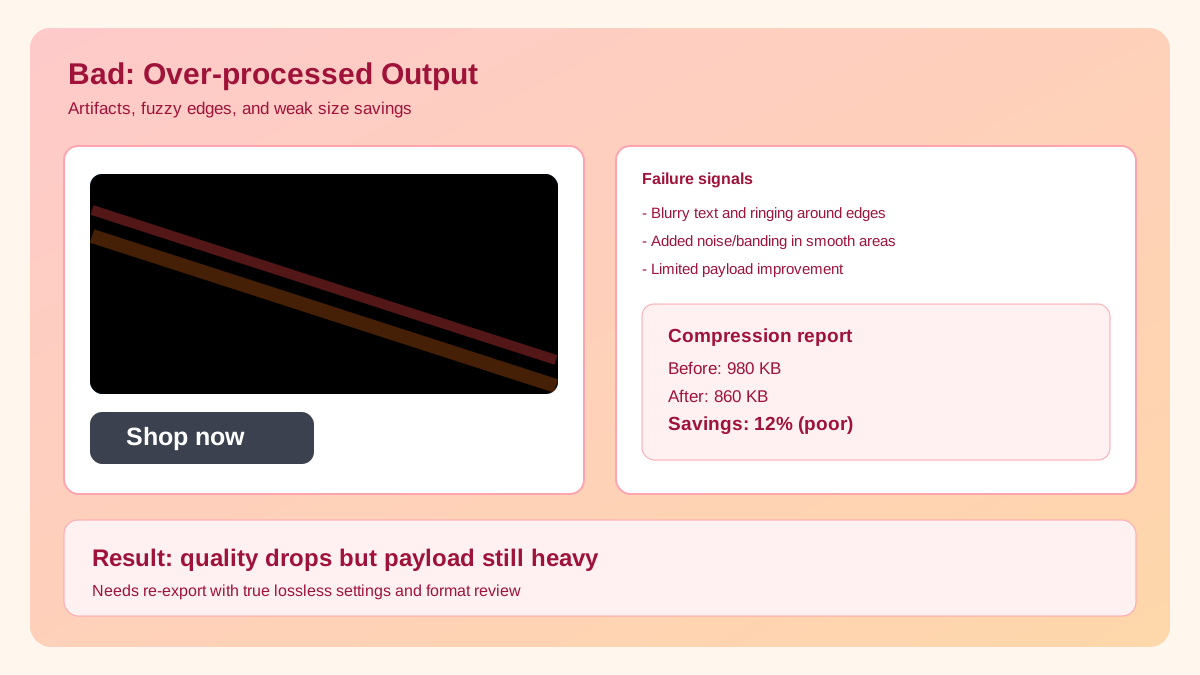
A quick visual check helps non-technical teams catch quality regressions immediately.
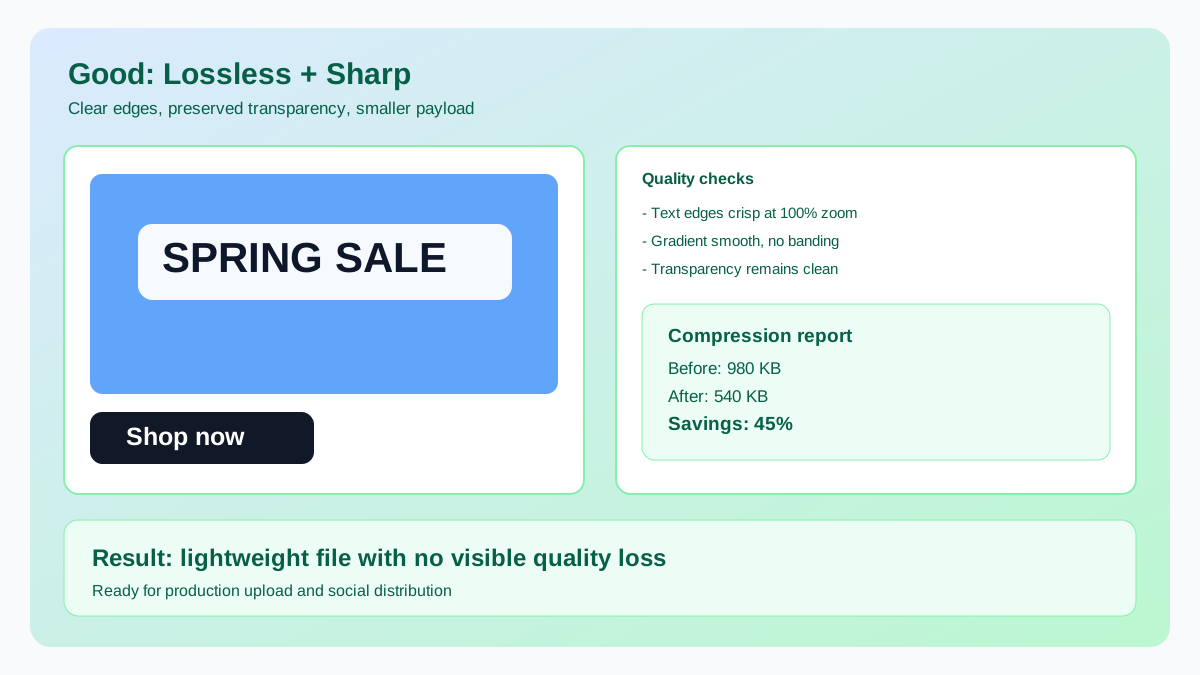
Good: Lossless and crisp

Preferred
Good: Lossless and crisp

Text edges and gradients remain clean while file size drops.
  • Readable text edges at 100% zoom.
  • Transparent backgrounds remain intact.
  • File size reduced without visual compromise.

Bad: Over-processed output

Avoid
Bad: Over-processed output

Artifacts and blur appear when settings are too aggressive or format choice is wrong.

  • ! Banding and noise around gradients.
  • ! Softened logo/icon edges after export.
  • ! Payload still high because dimensions were not resized.

Mini Decision Tree

Use this to decide whether PNG should stay PNG or be converted.

What kind of asset are you compressing?

If

Needs transparency or crisp UI edges

Then

Keep PNG + lossless compression

Best for logos and interface assets.

If

Photo-like image without transparency

Then

Convert to WebP first

Then compress for delivery efficiency.

If

Legacy compatibility is required

Then

Use JPG fallback

Keep quality around 82-88 for balance.

If

Large dimensions remain after compression

Then

Resize then re-compress

Dimension control often beats compression alone.

What Lossless Compression Does

  • Re-optimizes PNG structure and compression blocks.
  • Removes unnecessary metadata where safe.
  • Keeps alpha transparency and edges clean.

What It Does Not Do

  • It does not blur, resize, or alter visible detail.
  • It cannot fully fix oversized dimensions.
  • It is not always the best choice for photo-heavy images.

Lossless PNG Playbook

  1. Step 1

    Start from original design exports (avoid repeatedly re-processing previously optimized files).

  2. Step 2

    Upload PNG files to Image Compressor.

  3. Step 3

    Review output size reduction and inspect transparent edges at 100% zoom.

  4. Step 4

    If files remain large, resize dimensions or switch photo-like graphics to WebP/AVIF.

PNG vs Modern Formats (Quick Decision)

Use PNG When

You need crisp transparency, flat graphics, logos, and broad editing compatibility.

Use WebP When

You want strong compression with broad support and fast encode workflows.

Use AVIF When

You prioritize smallest payloads and can accept slower encode times.

Frequently Asked Questions

Yes. Lossless PNG optimization works by removing unnecessary metadata, optimizing the compression algorithm, and reducing the color palette where possible — all without changing any visible pixels. Typical savings are 20-50% depending on how the original PNG was exported.
Large PNG file sizes usually mean the image has high dimensions, millions of colors (photo-like content), or complex transparency. Consider resizing to the actual display dimensions first, then compressing. If the image is a photograph, converting to WebP or AVIF will dramatically reduce size (often 3-5x smaller) while still supporting transparency.
It depends on the content. JPG does not support transparency and introduces visible artifacts around sharp edges and text, making it unsuitable for logos, icons, and UI elements. For photographs without transparency, JPG or WebP will be significantly smaller than PNG. Use PNG for graphics with sharp edges, text, or transparency.
Yes. The compressor supports batch uploads and ZIP download, so you can process an entire set of icons, UI assets, or screenshots in one session. For best results, group similar assets together so you can verify visual quality on a representative sample before downloading the full batch.