Favicon issue diagnosis flow
1
Check files
2
Fix tags
3
Validate surfaces
Practical Guide
Troubleshoot missing favicons quickly with a proven path from diagnosis to final fix.
Favicon issue diagnosis flow
1
Check files
2
Fix tags
3
Validate surfaces
Quick summary
Troubleshoot missing favicons quickly with a proven path from diagnosis to final fix.
Changelog: content updated 2026-02-24, references verified 2026-02-24.
Field Note
Start with deterministic checks first: file reachability, tag correctness, and cache invalidation solve most missing favicon incidents.
Compare per-browser cache behavior and confirm each client is reading the same canonical icon path.
Validate CDN headers, MIME types, and deployment paths before changing assets repeatedly.
Remove duplicate tags and conflicting legacy references spread across layout files.
Pre-publish QA questions
Favicon Reliability Deep Dive
Standards references, deployment defaults, and cache/debug playbooks.
| Use case | Setting | Baseline | Target |
|---|---|---|---|
| Browser tabs and toolbar | favicon.ico + 32x32 PNG | Canonical head tags on all layouts | Consistent tab icon rendering |
| Mobile home-screen icon | apple-touch-icon | Version path on every brand update | No stale shortcuts |
| Search appearance | Crawlable favicon URL | 200 response + valid format | Reliable search favicon pickup |
Before
Partial icon files, conflicting tags, and stale cache behavior after updates.
After
Canonical icon stack with versioned URLs and repeatable validation checks.
Typical outcome
Fewer "icon not showing" incidents and faster post-branding rollout stability.
| Issue | Cause | Fix |
|---|---|---|
| Desktop shows new icon but mobile does not | Apple touch icon path unchanged | Version touch icon URLs and regenerate homescreen shortcut. |
| Icon changes appear random | Duplicate icon tags across layouts | Centralize head tags in one canonical partial. |
| Search icon never updates | Invalid or unreachable favicon URL | Ensure crawlable 200 response and valid icon format. |
| Symptom | First Check | Next Action |
|---|---|---|
| Tab icon stale | Versioned URL present? | Clear browser cache and reload |
| Mobile icon stale | apple-touch icon path updated? | Version touch icon and re-add shortcut |
| Search icon missing | Favicon crawlable and valid? | Verify status/MIME and canonical setup |
@include('partials.favicon-head') // Keep favicon tags in one shared layout partial only| Check | Pass Criteria |
|---|---|
| Status | Icon URLs return 200 |
| MIME | Correct image content type |
| Cache | Versioned URLs updated in rendered HTML |
Who this is for
What success looks like
Tested on
Scope and limits
Key takeaways
Common mistakes to avoid
30-minute action plan
Recommended tool stack
Related guides in this track
Use the exact favicon sizes and file setup Google and browsers expect in production.
6 min read
Force browsers and devices to show updated favicons using cache-busting that actually works.
5 min read
Build the right ICO/PNG/SVG favicon stack for compatibility, clarity, and easier maintenance.
7 min read
Run a complete favicon validation workflow across desktop browsers, iOS, Android, and Google Search.
8 min read
Execution depth
Fast Pass
15-20 min
Fix the highest-risk issue first and ship a validated minimum improvement.
Standard Rollout
45-60 min
Apply the full guide workflow with QA checks before publishing broadly.
Team Standardization
90+ min
Convert the workflow into reusable presets, checklists, and team operating rules.
| Troubleshooting Signal | Likely Cause | Recommended Fix |
|---|---|---|
| Old favicon still shows | Browser/platform cache persistence | Version favicon URLs and test in a fresh browser profile. |
| Icon appears on desktop but not mobile | Missing apple-touch or manifest assets | Publish full icon set and verify all platform tags. |
| Intermittent failures across pages | Duplicate or conflicting head tags | Consolidate to one canonical favicon tag set sitewide. |
Post-publish KPI checks
Detailed implementation blueprint
Collect all favicon files, tags, and platform variants currently in production.
Done when: You have one source-of-truth list of required files and tags.
Generate a complete, current favicon pack with consistent naming.
Done when: All required icon assets exist and match deployed markup references.
Ship updates in a way that minimizes stale icon behavior.
Done when: Updated icon appears reliably across browsers and mobile surfaces.
Prevent favicon regressions during theme, branding, or template changes.
Done when: Favicon quality remains stable through future site updates.
Quality gate checklist
Advanced wins
Execution next step
Run a primary tool action, review one companion guide, then apply the rollout checklist.
Use this order to avoid wasting time on cache clears before fixing root setup errors.
Confirm icon files exist and return 200 responses.
Ensure one canonical icon tag set with no conflicts.
Update icon query/version to force cache refresh.
Test desktop, iOS, Android, and checker output.
Work through the most common causes in order — file issues first, cache last.
If
Browser shows a blank or generic icon
Then
Check that favicon files exist and return 200
Visit /favicon.ico directly — if you get a 404, the file is missing or misplaced.
If
Old favicon still appears after updating
Then
Version your URLs and hard-refresh
Browsers cache favicons aggressively. Add ?v=2 to icon URLs and clear browser cache.
If
Works on desktop but not on iOS/Android
Then
Add apple-touch-icon and manifest icons
Mobile platforms require specific icon tags and sizes that differ from desktop browser favicons.
If
Favicon missing only in Google search results
Then
Validate with Google favicon requirements
Google requires a multiple-of-48px icon, valid robots access, and proper link tags in head.
Ensure `/favicon.ico`, PNG sizes, and `site.webmanifest` exist where your tags point.
Version your favicon URLs with `?v=2` and hard-refresh to force updates.
Provide standard icon tags plus Apple Touch Icon and manifest links.
Google, iOS, and Android each require specific sizes and format support.
Use this baseline in your page head:
<link rel="icon" type="image/png" sizes="32x32" href="/favicon-32x32.png?v=2">
<link rel="icon" type="image/png" sizes="16x16" href="/favicon-16x16.png?v=2">
<link rel="apple-touch-icon" sizes="180x180" href="/apple-touch-icon.png?v=2">
<link rel="manifest" href="/site.webmanifest?v=2">Step 1
Generate a fresh favicon package from Favicon Generator.
Step 2
Upload files and update your head tags exactly once, avoiding duplicate `rel=icon` conflicts.
Step 3
Add a query version suffix to favicon URLs so cache picks up new assets.
Step 4
Validate with Favicon Checker across desktop and mobile.
A fast way to teach why one missing file can break only one platform.
Most favicon failures come down to missing files, wrong paths, or incomplete HTML tags — all fixable in minutes.
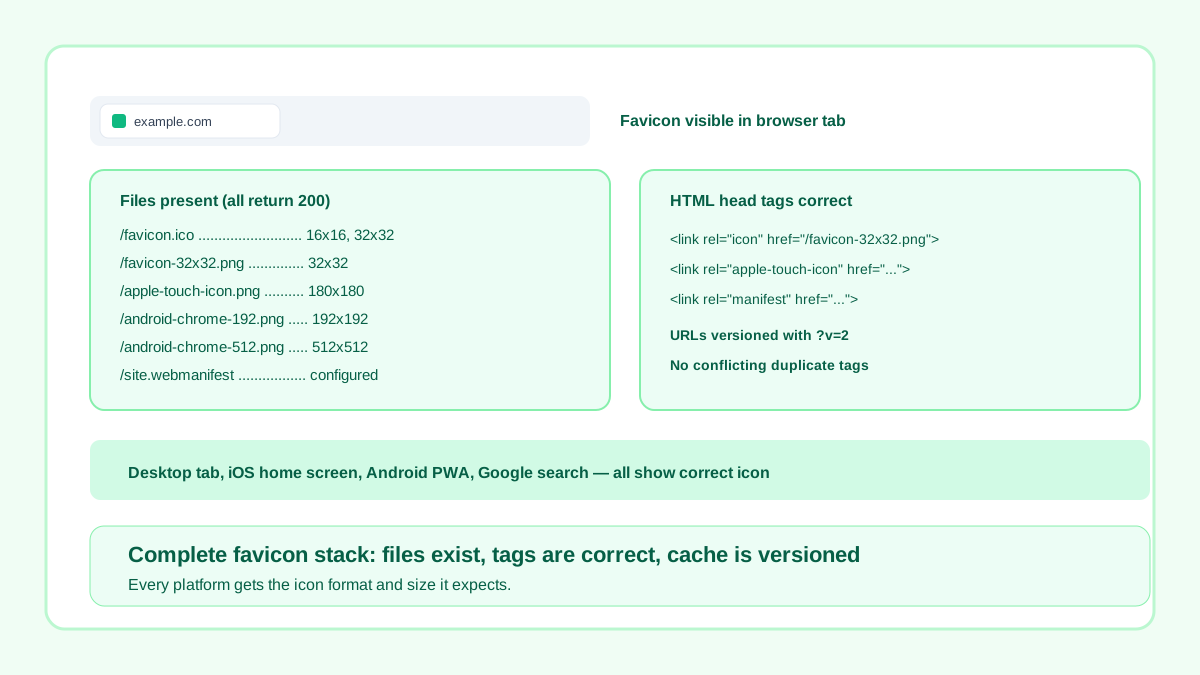
All files return 200, HTML tags are correct, cache is versioned, all platforms show the icon.
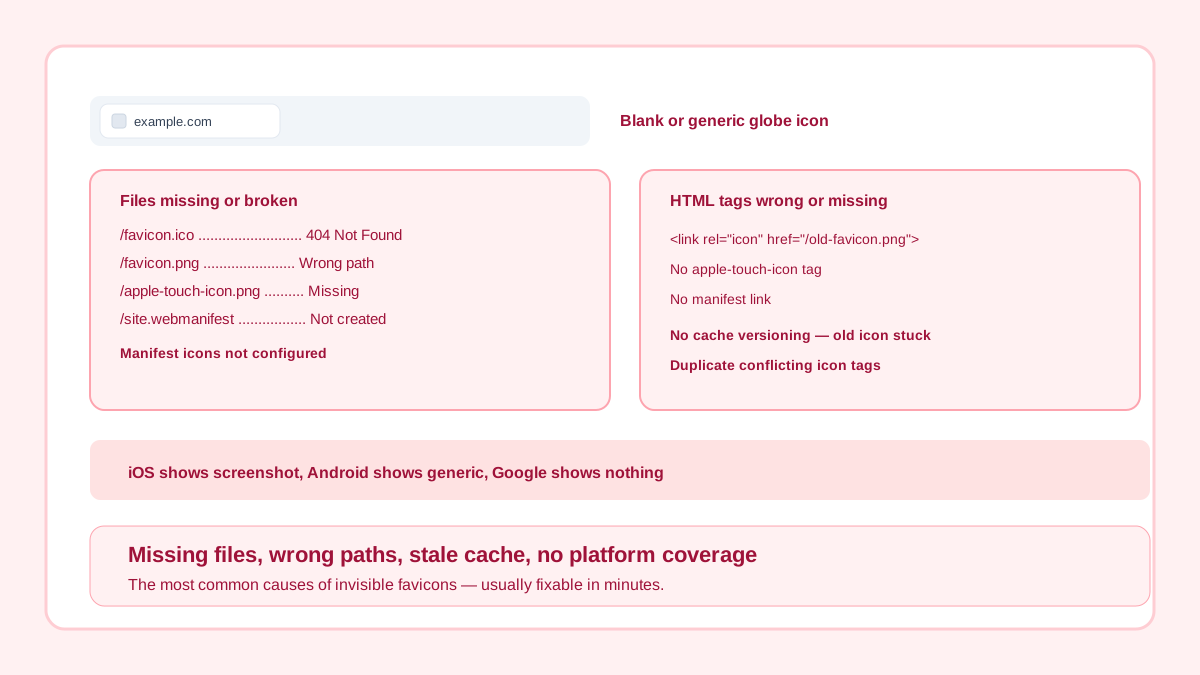
Missing files, wrong paths, stale cache, and no platform-specific icons configured.
Use this to isolate whether the issue is file-level, markup-level, or cache-level.
Related workflow
Explore related tools to keep your workflow fast and consistent.
