Safe image conversion workflow
Source
->
Target format
Conversion safety checks
Practical Guide
Convert between WebP, JPG, and PNG with format-safe rules that preserve quality and compatibility.
Safe image conversion workflow
Conversion safety checks
Quick summary
Convert between WebP, JPG, and PNG with format-safe rules that preserve quality and compatibility.
Changelog: content updated 2026-03-06, references verified 2026-02-24.
Field Note
Safe conversion is asset-aware: choose by transparency, detail type, and destination compatibility constraints.
Batch-convert JPG to WebP while retaining JPG fallbacks for legacy distribution paths.
Keep transparency-safe PNG outputs where logos and UI assets demand crisp edges.
Normalize to accepted format/size presets to avoid moderation rejects.
Pre-publish QA questions
Format Ops Deep Dive
Reference-backed format defaults, quality baselines, and conversion edge-case fixes.
| Use case | Setting | Baseline | Target |
|---|---|---|---|
| Hero or landing photo | AVIF/WebP + JPG fallback | 1600-2000 px long edge | 120-260 KB |
| Content/editorial image | WebP or optimized JPG | 900-1400 px long edge | 70-180 KB |
| Transparent brand/UI graphic | PNG or SVG | Exact render size x2 | Under 180 KB |
Before
Mixed-format uploads, inconsistent quality presets, and large payload variance across templates.
After
Role-based format rules with explicit fallbacks and constrained export dimensions.
Typical outcome
Fewer upload failures, faster pages, and more predictable visual QA outcomes.
| Issue | Cause | Fix |
|---|---|---|
| Assets look soft after conversion | Wrong export dimensions or over-compression | Match real display size and raise quality gradually with side-by-side checks. |
| Platform rejects uploads intermittently | Unsupported format in some channels | Define per-channel fallback format and enforce it in workflow. |
| Files are unexpectedly huge | Using transparency formats for photo-heavy assets | Reclassify asset type and switch to photo-friendly format. |
Who this is for
What success looks like
Tested on
Scope and limits
Key takeaways
Common mistakes to avoid
30-minute action plan
Recommended tool stack
Related guides in this track
Convert iPhone HEIC photos into clean JPG files that upload everywhere without quality surprises.
6 min read
Choose AVIF or WebP confidently using real tradeoffs for quality, speed, and browser coverage.
8 min read
Pick the right default for photo-heavy pages with practical quality and payload checkpoints.
7 min read
Use one actionable framework to choose JPG, PNG, WebP, AVIF, SVG, or GIF by context.
9 min read
Execution depth
Fast Pass
15-20 min
Fix the highest-risk issue first and ship a validated minimum improvement.
Standard Rollout
45-60 min
Apply the full guide workflow with QA checks before publishing broadly.
Team Standardization
90+ min
Convert the workflow into reusable presets, checklists, and team operating rules.
| Troubleshooting Signal | Likely Cause | Recommended Fix |
|---|---|---|
| Output looks soft or fuzzy | Aggressive compression or wrong export dimensions | Re-export at correct display size and raise quality incrementally. |
| Uploads fail on target platform | Unsupported format or oversized file | Convert to a safer fallback format and compress before retrying. |
| Unexpectedly large file size | Inefficient source format or metadata bloat | Run conversion + compression and strip unnecessary metadata. |
Post-publish KPI checks
Detailed implementation blueprint
Map where each image type appears and where format mismatches are causing bloat or breakage.
Done when: You have a categorized inventory and the top three format issues prioritized.
Run representative conversions with side-by-side quality checks before broad rollout.
Done when: You have approved format rules per asset type with validated quality and size results.
Apply rules in templates and upload workflows with safe fallback behavior.
Done when: New uploads follow the standard and critical templates use optimized formats.
Keep format decisions current as browsers, workflows, and channels evolve.
Done when: The format policy is stable, documented, and verified by ongoing metrics.
Quality gate checklist
Advanced wins
Execution next step
Run a primary tool action, review one companion guide, then apply the rollout checklist.
Use this flow to prevent transparency loss, quality drift, and channel compatibility issues.
Photo, logo, transparent UI, or mixed composition.
Choose WebP/JPG/PNG by destination constraints.
Tune for actual render size and payload budget.
Test in CMS/upload channel and live UI previews.
Guide Visual
This is the decision teams actually need to make. Choose the format that matches the asset's behavior first, then tune quality and compression after.
Asset Example
Product photo / blog hero
Asset Example
Transparent logo / badge
Asset Example
UI screenshot / text-heavy capture
Asset Example
Marketing graphic / social card
| Asset Type | Best Target | Avoid |
|---|---|---|
| Product photos | WebP (or JPG fallback) | PNG unless transparency required |
| Logos / transparent UI | PNG | JPG (no transparency support) |
| Legacy channel compatibility | JPG | WebP-only delivery |
| Web pages with performance target | WebP | Oversized original JPG uploads |
Use when destination tool does not accept WebP.
Best for website performance gains.
Only when transparency is not needed.
Conversion quality improves dramatically when teams classify assets first.
Keep this visual QA check handy before publishing converted outputs.
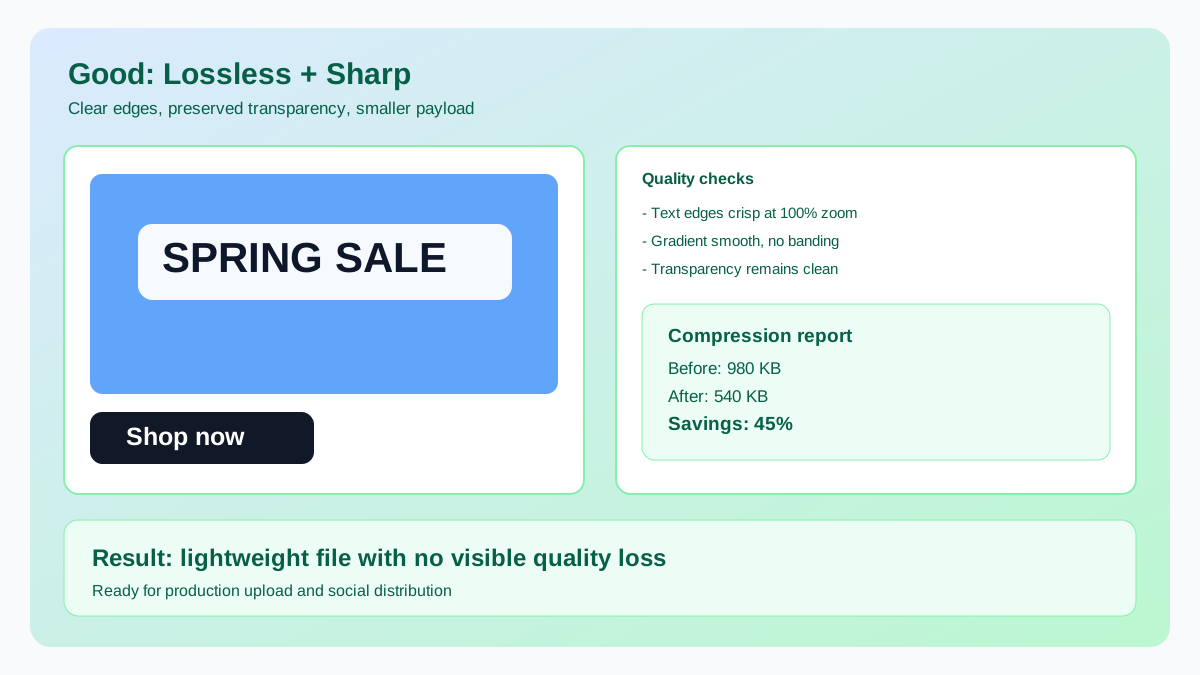
Right format and quality settings preserve edge detail while reducing payload.
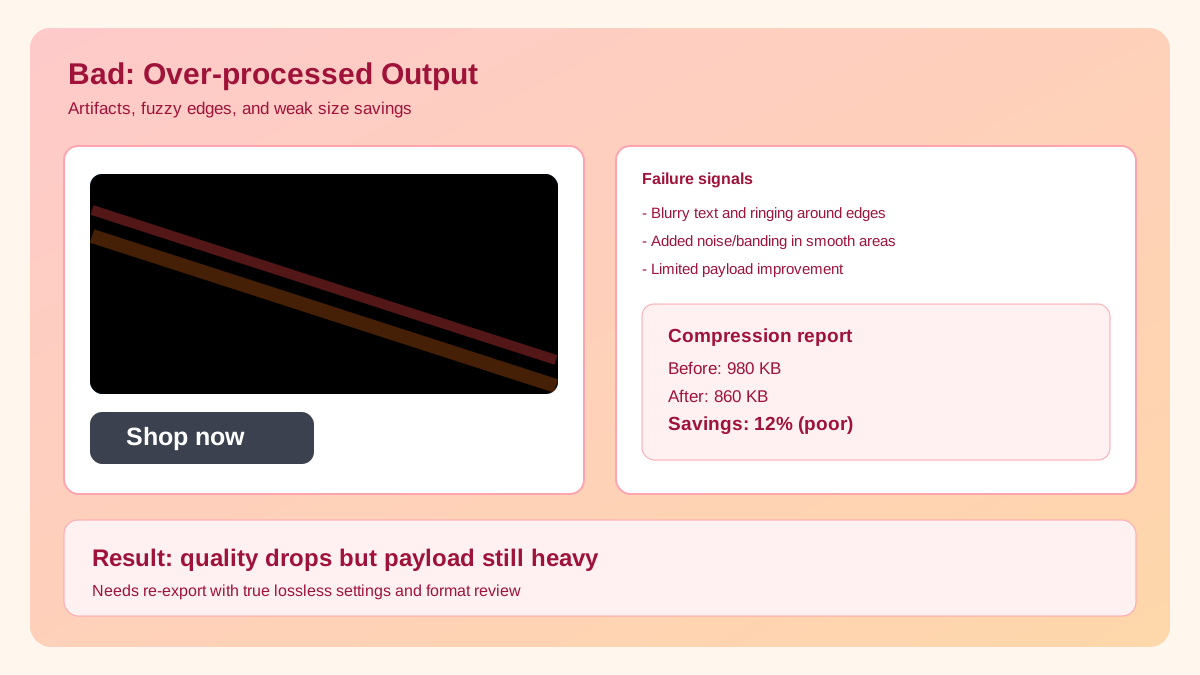
Wrong format choice and aggressive settings can blur text and create artifacts.
Use this quick tree when handoffs are fast and you need a reliable default.
If
Transparency is required
Then
Use PNG
Logos, UI elements, overlays.
If
Photo quality + web performance
Then
Use WebP
Keep JPG fallback for legacy channels.
If
Legacy upload compatibility
Then
Use JPG
Most CMS/email flows accept JPG safely.
If
Unsure between options
Then
Test 2 candidates side-by-side
Compare quality at real render size.
Related workflow
Explore related tools to keep your workflow fast and consistent.
Keep moving
Convert between WebP, JPG, and PNG directly.
Open tool
Keep moving
Broader format selection framework for web delivery.
Open tool
Keep moving
Detailed tradeoffs for photo-centric workloads.
Open tool
Keep moving
Transparent asset and logo-specific guidance.
Open tool
