Channel size and safe-zone map
1
Pick channel preset
2
Export variants
3
Preview crops
Practical Guide
Use platform-ready dimensions and safe zones for social posts, link previews, ads, and carousels.
Channel size and safe-zone map
1
Pick channel preset
2
Export variants
3
Preview crops
Quick summary
Use platform-ready dimensions and safe zones for social posts, link previews, ads, and carousels.
Changelog: content updated 2026-03-06, references verified 2026-02-24.
Field Note
Social performance improves when every channel uses explicit size presets, safe zones, and preview-first QA.
Generate channel-specific exports in one batch from a single approved design master.
Use naming conventions tied to platform placement and ratio to reduce confusion.
Version preset tables and audit quarterly against platform UI changes.
Pre-publish QA questions
Channel Delivery Deep Dive
Storefront/social defaults, channel pitfalls, and share-safe implementation notes.
| Use case | Setting | Baseline | Target |
|---|---|---|---|
| Storefront catalog grid | Single ratio policy | 1000-1200 px long edge | Stable card layout and faster loads |
| Product detail imagery | Higher-detail variant + compression | 1600-2400 px long edge | Clear zoom without bloat |
| Social OG campaign art | 1200x630 with safe zones | Center-weighted composition | Consistent preview fidelity |
Before
Uneven ratios, over-sized exports, and repetitive channel-specific rework.
After
Preset-based resizing/compression with platform-safe crop rules.
Typical outcome
Cleaner storefronts and quicker campaign asset turnaround.
| Issue | Cause | Fix |
|---|---|---|
| Catalog cards look uneven | Mixed aspect ratios in source uploads | Apply one ratio standard per storefront template. |
| Social previews crop key message | No safe-zone composition | Use center-safe text/brand zones in OG templates. |
| Teams keep re-exporting manually | No reusable presets | Create named presets per channel and enforce them. |
Who this is for
What success looks like
Tested on
Scope and limits
Key takeaways
Common mistakes to avoid
30-minute action plan
Recommended tool stack
Related guides in this track
Use platform-safe Open Graph dimensions so social previews look clean and clickable.
6 min read
Audit live Open Graph and X metadata, debug broken social previews, and fix the highest-impact issues first.
9 min read
Prepare Shopify and WooCommerce images with consistent sizing, better quality, and faster load times.
8 min read
Turn one brand color into a production-ready palette with semantic tokens and accessibility checks.
9 min read
Execution depth
Fast Pass
15-20 min
Fix the highest-risk issue first and ship a validated minimum improvement.
Standard Rollout
45-60 min
Apply the full guide workflow with QA checks before publishing broadly.
Team Standardization
90+ min
Convert the workflow into reusable presets, checklists, and team operating rules.
| Troubleshooting Signal | Likely Cause | Recommended Fix |
|---|---|---|
| Product imagery looks inconsistent | Mixed dimensions and export settings | Standardize channel-specific presets and enforce them in workflow. |
| Social previews crop key content | Wrong canvas ratio or safe zone usage | Design with platform-safe dimensions and preview before posting. |
| Campaign assets take too long to ship | Manual one-off edits per channel | Use reusable templates plus batch resize/compress steps. |
Post-publish KPI checks
Detailed implementation blueprint
Map each destination channel to exact format, dimensions, and quality rules.
Done when: You have a complete destination spec sheet for all high-value channels.
Build reusable export presets to eliminate one-off manual edits.
Done when: Teams can generate channel-ready assets with minimal manual tweaking.
Add preflight checks that catch errors before campaigns go live.
Done when: First-publish success rate is high and preview errors are uncommon.
Operationalize the workflow for larger catalogs and faster campaign cycles.
Done when: Asset operations scale without quality drift or repeated rework.
Quality gate checklist
Advanced wins
Execution next step
Run a primary tool action, review one companion guide, then apply the rollout checklist.
This page is the operational handoff for dimensions and placement defaults. Use the neighboring guides when you need composition or sequence strategy, not another size table.
This guide
Platform dimensions, aspect ratios, safe-zone reminders, and export targets.
Use instead for OG
Go to Best Open Graph Image Size when you need headline placement, crop safety, and preview composition rules.
Use instead for carousels
Go to Split Images for Social Carousels when the job is seam placement, swipe flow, or ordered panel exports.
Once the correct social image is published on a live URL, run OG/Meta Tag Checker to validate that the page metadata and preview image delivery are actually aligned.
Use this as the production handoff: confirm the placement, pull the right spec, then export the correct variant.
Decide whether this is feed, story, carousel, or link preview before design handoff.
Pull the correct dimensions and aspect ratio from the reference table.
Generate one deterministic output per platform placement.
Validate crops and readability in native platform previews.
A size-and-safe-zone workflow avoids avoidable crop and readability failures.
Guide Visual
This is the faster mental model than a generic tool screenshot: match the campaign asset to the preview shape first, then keep the message inside the safe center of that shape.
Instagram Feed
Square Post
Link Preview / OG
Story / Reel Cover
Rule of thumb
Choose the preview shape first, keep important copy inside the dashed safe zone second, and only then export the platform-specific variant.
Use these as operational defaults and re-check platform docs quarterly.
| Platform / Placement | Recommended Size | Aspect Ratio |
|---|---|---|
| Instagram feed portrait | 1080 x 1350 | 4:5 |
| Instagram square | 1080 x 1080 | 1:1 |
| X in-feed image | 1600 x 900 | 16:9 |
| LinkedIn share image | 1200 x 627 | ~1.91:1 |
| Facebook link preview | 1200 x 630 | 1.91:1 |
| Story/Reel cover baseline | 1080 x 1920 | 9:16 |
Platform dimensions change over time. Reconfirm high-impact placements with these official references before large campaign launches.
Start with quality-first exports, then reduce size progressively using Image Compressor until text and logos remain crisp.
Keep key text/logo inside center-safe region to survive platform crop behavior.
One design source, multiple delivery variants.
These visual examples make crop risk obvious before campaign launch.
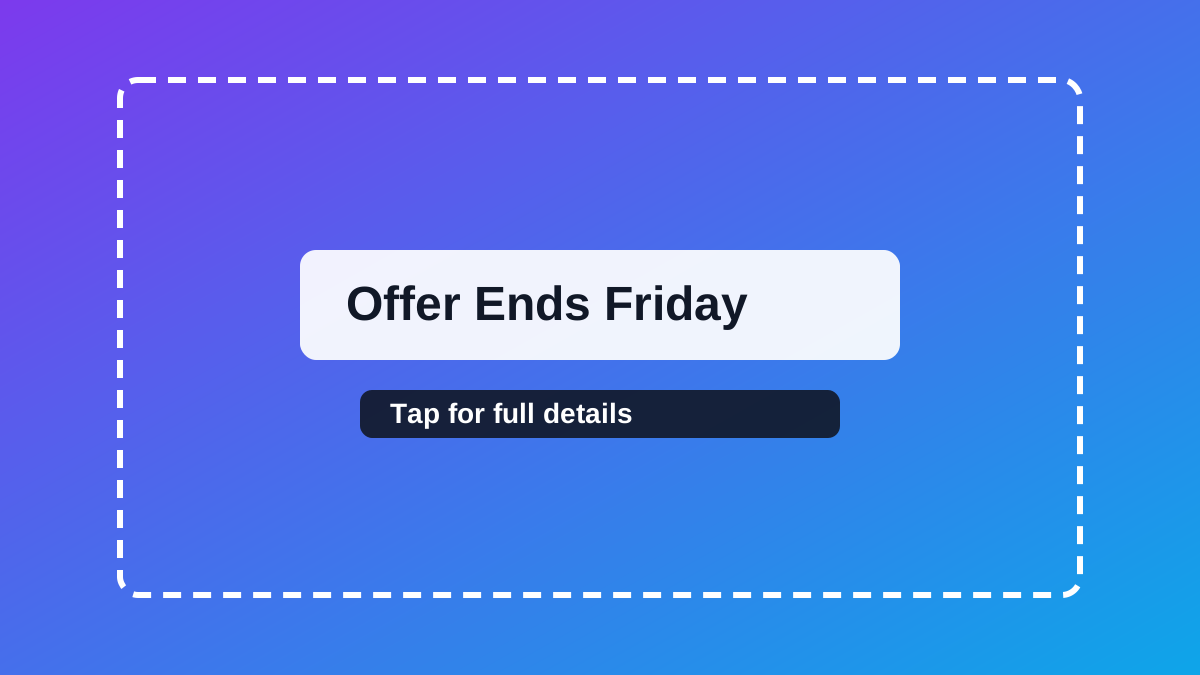
Headline and CTA remain visible across feed, link preview, and carousel crops.
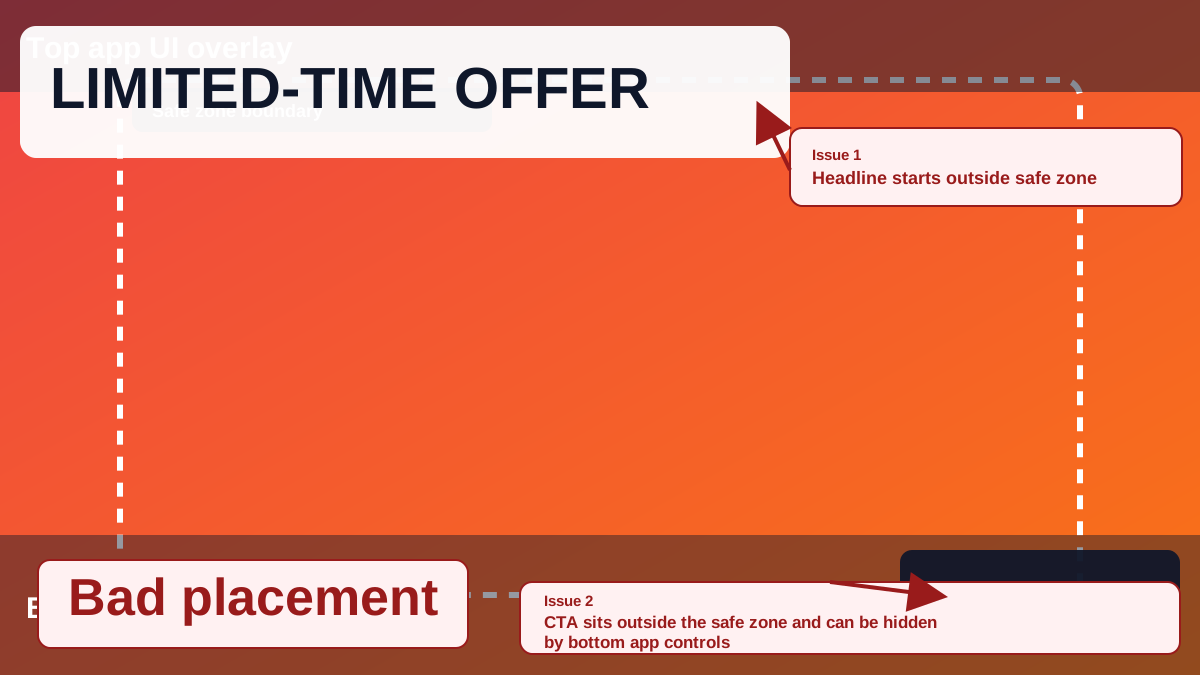
Edge-placed text gets clipped by platform UI and auto-cropping.
Use this when selecting social image variants quickly.
If
Feed post with text-heavy design
Then
Use 1080x1350 (4:5)
Maximizes on-screen area in most feeds.
If
Link preview / OG sharing
Then
Use 1200x630 (~1.91:1)
Then use the OG guide for composition and crop safety.
If
Story or vertical reel cover
Then
Use 1080x1920 (9:16)
Keep text away from top/bottom UI zones.
If
Multi-panel educational post
Then
Use carousel sequence + safe-zone QA
Then move to the carousel guide for seam placement and slide roles.
Related workflow
Explore related tools to keep your workflow fast and consistent.
Keep moving
Create share-ready link preview images quickly.
Open tool
Keep moving
Build seamless carousel sequences with proper dimensions.
Open tool
Keep moving
Focused guide for OG-specific dimensions and safe zones.
Open tool
Keep moving
Generate final platform variants from one source file.
Open tool
