Carousel split sequencing
1
Plan sequence
2
Split slides
3
Validate mobile
Practical Guide
Create seamless multi-slide carousel sequences for social campaigns with exact sizing and flow rules.
Carousel split sequencing
1
Plan sequence
2
Split slides
3
Validate mobile
Quick summary
Create seamless multi-slide carousel sequences for social campaigns with exact sizing and flow rules.
Changelog: content updated 2026-03-01, references verified 2026-02-24.
Field Note
Carousel success comes from sequencing and alignment discipline as much as from individual slide quality.
Split one wide visual with narrative pacing across slides 1-5.
Use predictable heading and safe zone grids so content is scannable.
Maintain consistent margins and typography rhythm across all segments.
Pre-publish QA questions
Channel Delivery Deep Dive
Storefront/social defaults, channel pitfalls, and share-safe implementation notes.
| Use case | Setting | Baseline | Target |
|---|---|---|---|
| Storefront catalog grid | Single ratio policy | 1000-1200 px long edge | Stable card layout and faster loads |
| Product detail imagery | Higher-detail variant + compression | 1600-2400 px long edge | Clear zoom without bloat |
| Social OG campaign art | 1200x630 with safe zones | Center-weighted composition | Consistent preview fidelity |
Before
Uneven ratios, over-sized exports, and repetitive channel-specific rework.
After
Preset-based resizing/compression with platform-safe crop rules.
Typical outcome
Cleaner storefronts and quicker campaign asset turnaround.
| Issue | Cause | Fix |
|---|---|---|
| Catalog cards look uneven | Mixed aspect ratios in source uploads | Apply one ratio standard per storefront template. |
| Social previews crop key message | No safe-zone composition | Use center-safe text/brand zones in OG templates. |
| Teams keep re-exporting manually | No reusable presets | Create named presets per channel and enforce them. |
| Use Case | Suggested Canvas | Note |
|---|---|---|
| Square carousel | 1080x1080 per slide | Most stable across major social feeds |
| Portrait carousel | 1080x1350 per slide | Higher feed real estate on mobile |
| Wide narrative split | Platform-specific | Validate crop preview before publish |
Who this is for
What success looks like
Tested on
Scope and limits
Key takeaways
Common mistakes to avoid
30-minute action plan
Recommended tool stack
Related guides in this track
Use platform-safe Open Graph dimensions so social previews look clean and clickable.
6 min read
Audit live Open Graph and X metadata, debug broken social previews, and fix the highest-impact issues first.
9 min read
Prepare Shopify and WooCommerce images with consistent sizing, better quality, and faster load times.
8 min read
Turn one brand color into a production-ready palette with semantic tokens and accessibility checks.
9 min read
Execution depth
Fast Pass
15-20 min
Fix the highest-risk issue first and ship a validated minimum improvement.
Standard Rollout
45-60 min
Apply the full guide workflow with QA checks before publishing broadly.
Team Standardization
90+ min
Convert the workflow into reusable presets, checklists, and team operating rules.
| Troubleshooting Signal | Likely Cause | Recommended Fix |
|---|---|---|
| Product imagery looks inconsistent | Mixed dimensions and export settings | Standardize channel-specific presets and enforce them in workflow. |
| Social previews crop key content | Wrong canvas ratio or safe zone usage | Design with platform-safe dimensions and preview before posting. |
| Campaign assets take too long to ship | Manual one-off edits per channel | Use reusable templates plus batch resize/compress steps. |
Post-publish KPI checks
Detailed implementation blueprint
Map each destination channel to exact format, dimensions, and quality rules.
Done when: You have a complete destination spec sheet for all high-value channels.
Build reusable export presets to eliminate one-off manual edits.
Done when: Teams can generate channel-ready assets with minimal manual tweaking.
Add preflight checks that catch errors before campaigns go live.
Done when: First-publish success rate is high and preview errors are uncommon.
Operationalize the workflow for larger catalogs and faster campaign cycles.
Done when: Asset operations scale without quality drift or repeated rework.
Quality gate checklist
Advanced wins
Execution next step
Run a primary tool action, review one companion guide, then apply the rollout checklist.
This page starts after you know the target format. Its job is seam placement, narrative pacing, and ordered exports for multi-panel carousels.
This guide
Plan the full storyboard, place seams in low-detail zones, and make each panel work on its own.
Use instead for specs
Go to Social Media Image Sizes when you need platform-by-platform placement dimensions.
Use instead for single previews
Go to Best Open Graph Image Size when the deliverable is one share card, not a swipe sequence.
Carousel panels themselves do not use OG tags, but campaign landing pages often still need a strong shared-link preview. After you publish that destination page, use OG/Meta Tag Checker to validate the live OG image and metadata handoff.
Set dimensions before you split. This avoids seam drift, unexpected crops, and platform-specific rejection later in the workflow.
| Platform | Format | Dimensions | Ratio | Max Slides |
|---|---|---|---|---|
| Feed carousel (square) | 1080 × 1080 | 1:1 | 20 | |
| Feed carousel (portrait) | 1080 × 1350 | 4:5 | 20 | |
| Carousel ads | 1080 × 1080 | 1:1 | 2-10 cards | |
| Carousel ads | 1080 × 1080 | 1:1 | 2-10 cards | |
| Twitter / X | Multi-image post | 1200 × 675 | 16:9 | 4 |
For platforms with multiple placements, treat these as current production defaults and re-check campaign-specific docs before launch.
Guide Visual
This is the missing mental model for carousel work: design the full sequence, then split only after seams are safely placed.
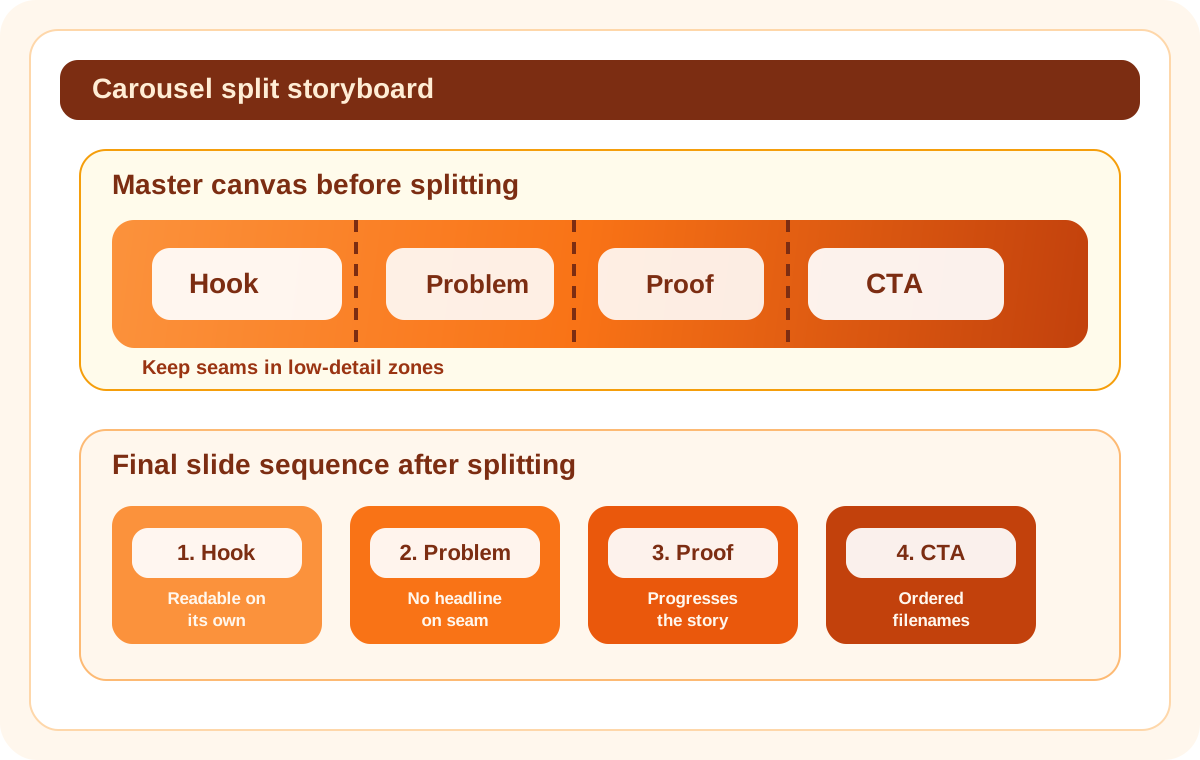
This reusable visual makes the split rule obvious before design review starts.
Don't
A seam through the headline or product edge weakens both cards at once.
Do
Put seams in low-detail gaps so each panel still reads clearly on its own.
A good split is not only technical. The sequence itself needs a job for each panel so viewers keep swiping.
Slide 1
Make the first panel readable as a standalone cover with one strong promise or question.
Slide 2
Set up the problem, sequence, or product story without crowding the seam edge with key copy.
Slides 3-4
Advance the story with examples, proof, or product detail while preserving consistent margin rhythm.
Final slide
End with a simple action or summary, not another dense informational panel.
Use this visual framework to plan the story first, split second, and export in the exact swipe order.
Lay out hook, context, proof, and CTA roles before you think about slices.
Move cut lines away from copy, faces, and product edges.
Every slide should still read well as a standalone card or thumbnail.
Use deterministic filenames so schedulers preserve the intended swipe story.
A size-and-safe-zone workflow avoids avoidable crop and readability failures.
The difference between a professional carousel and a broken one is where the seams land.
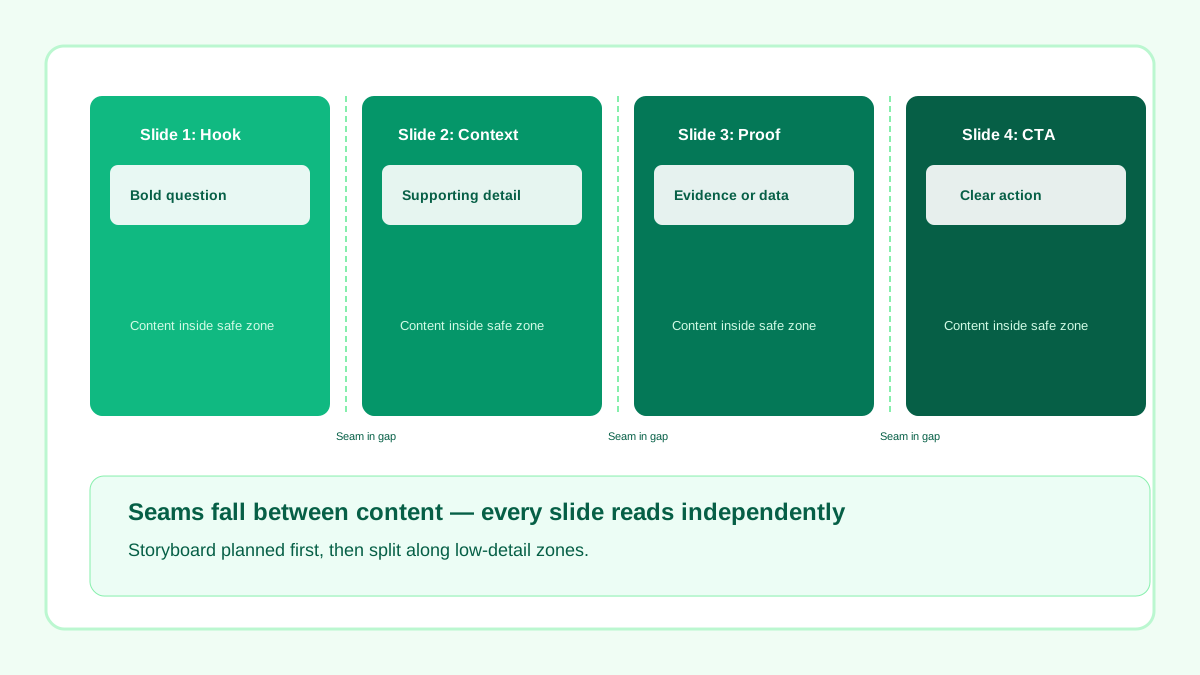
Storyboard planned first, then split along spacing zones — every slide reads independently.
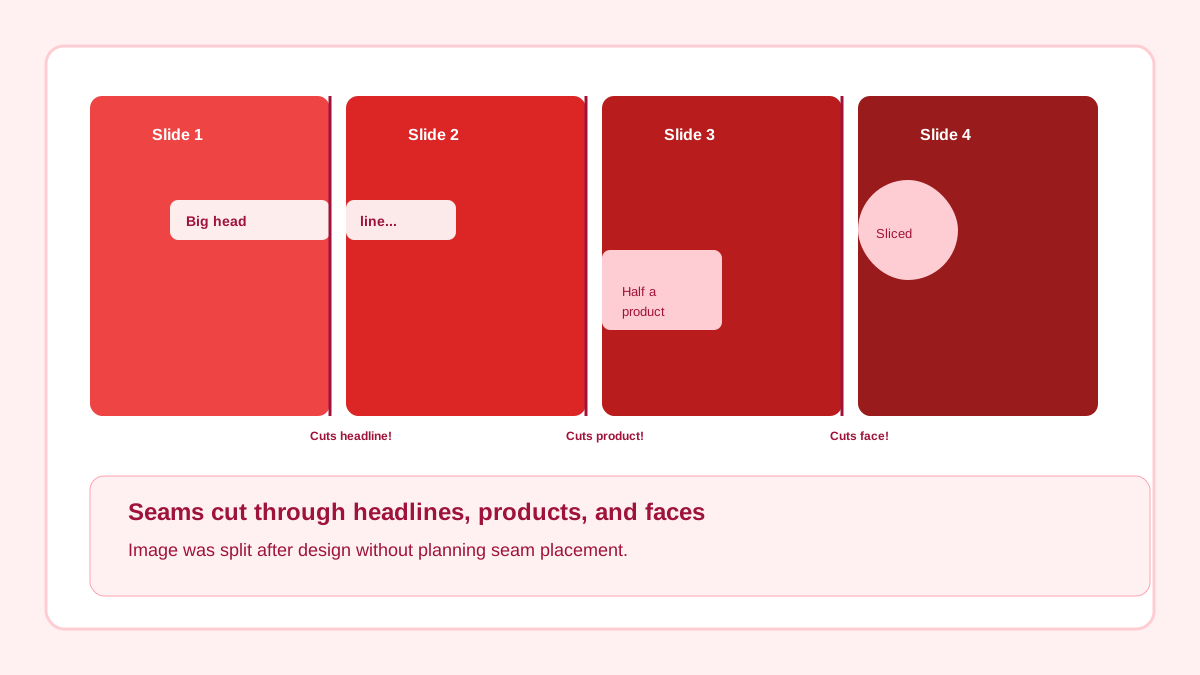
Image split after design without planning — seams cut through headlines, products, and faces.
Pick the structure before you begin slicing so the design system stays coherent.
If
One wide visual spans multiple cards
Then
Design the master strip first
Leave seams in low-detail areas and preview every split.
If
Educational or list-based carousel
Then
Design each card to stand alone
Keep typography, margins, and slide roles consistent.
If
Product or launch story
Then
Sequence hero -> detail -> proof -> CTA
Use the order to build momentum rather than repeating the same layout.
If
Platform is X
Then
Treat it as a multi-image post, not a stitched panorama
Design each image to work independently in the post stack.
Related workflow
Explore related tools to keep your workflow fast and consistent.
